Install LightningX VPN on Mobile: iOS & Android Tutorial
2026-05-10 ·
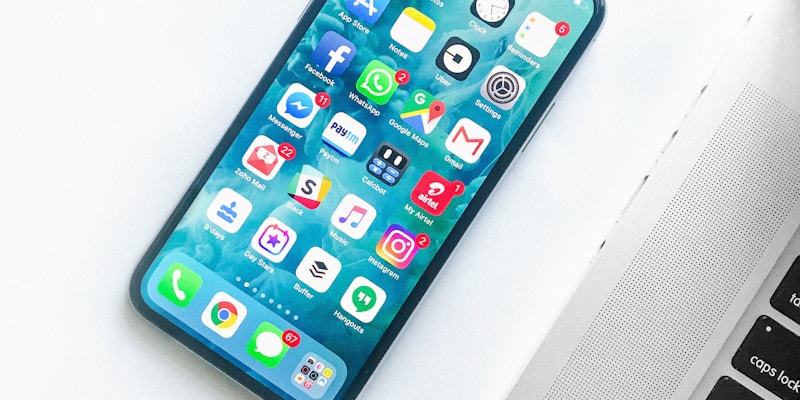
iPhone / iPad Installation Guide
Step 1: Download the App
Open the App Store and type "LightningX VPN" into the search bar. Find the official app in the search results — look for the lightning bolt icon — then tap download.
This goes without saying but bears repeating: there's more than one app on the App Store with "LightningX" in the name. Check the developer name and review count before you download. The official app typically has an order of magnitude more reviews than knockoff versions, making it easy to distinguish at a glance.
If you can't find the app, check your Apple ID region settings. VPN apps are not displayed in the mainland China App Store — you'll need to switch to a US, Hong Kong, or other regional Apple ID. To switch: tap your profile icon in the top-right corner of the App Store → Account → Country/Region.
There's an even more foolproof method: scan the QR code directly from the LightningX VPN official website homepage. It will automatically redirect you to the correct App Store page, eliminating any chance of downloading the wrong app.
Step 2: Install and Grant Permissions
After the download completes, open the app for the first time. Your iPhone will display a system dialog saying "LightningX VPN Would Like to Add VPN Configurations." Tap Allow, then authenticate with your device passcode or Face ID.
This is part of iOS's built-in security mechanism — every VPN app must obtain explicit user authorization before it can establish a VPN connection. Don't worry, this is standard procedure and nothing out of the ordinary.
Step 3: Log In and Connect
Register or log in using your email address. New users typically receive a free trial quota upon signing up.
Once you're on the main screen, you'll see a prominent connect button. Tap it once, and the system will automatically select the optimal server for your location. Within seconds, a "VPN" icon will appear in your status bar — that means you're connected.
Step 4: Recommended Settings
Head into the settings menu and make a few adjustments:
- Turn on Auto-Connect — this automatically starts the VPN whenever you join a Wi-Fi network, sparing you the hassle of manually connecting every time.
- Enable Kill Switch — if the VPN connection drops unexpectedly, this cuts off all internet traffic to prevent your real IP address from leaking.
- Under Protocol, select WireGuard — it's faster than OpenVPN and uses less battery.
Android Phone Installation Guide
Step 1: Get the Installation Package
You have two options:
Google Play (recommended): Search for "LightningX VPN" and find the official app, then tap Install. The advantage here is automatic updates.
Official Website APK Download: This is for phones without Google services. Open your browser, visit the LightningX VPN official website, find the Android download section, and download the APK file.
Step 2: Install the APK
If you went the APK route, after the download completes, tap the APK file. Your phone may display a warning about "installing apps from unknown sources." Go to your phone's Settings, find Security or App Management, locate your browser app, and enable the Allow installation from unknown sources option.
Return to the download page and tap the APK file again to install. Once the installation is complete, I strongly recommend going back into settings and turning that permission off — it's a good security habit.
Step 3: Log In and Connect
Open the LightningX VPN app and register or log in. The main interface is nearly identical to the iOS version — just tap the connect button and you'll be online within seconds.
Android offers one extra convenience: the notification area in your status bar displays VPN status and real-time connection speed. Just pull down to check — super handy.
Step 4: Recommended Settings
Same as iOS — turn on Auto-Connect, enable Kill Switch, and select WireGuard as your protocol.
Practical Tips for Using a VPN on Mobile
Split Tunneling Is Worth Setting Up
LightningX VPN's app supports split tunneling — you can specify which apps route through the VPN and which connect directly. For example: set domestic video apps like iQIYI and Tencent Video to connect directly for full speed and a seamless experience, while routing overseas apps like YouTube, Instagram, and WhatsApp through the VPN. This way, neither side's experience is compromised.
Server Selection Logic
- Everyday privacy protection: Pick the node with the lowest latency — usually Hong Kong or Japan offers the lowest ping.
- Watching US Netflix: Choose a US server node.
- Watching Japanese dramas or anime: Pick a Japan node.
- Gaming: Select the node physically closest to you — latency matters more than anything else.
Keep an Eye on Battery Drain
A VPN runs as a persistent background service, so it will consume some battery power. LightningX VPN is well-optimized in this regard, especially when using the WireGuard protocol. But if you're going to be out all day with limited charging opportunities, feel free to disconnect manually when you don't need it and reconnect when you do.
If I had to sum up the right approach to mobile VPN usage in eight words: install it right, set it up, stay connected. Spend ten minutes on the initial setup, and from then on it's just open the app, tap connect, and you're done in two seconds.
享受无限、高速和安全的浏览!立即保护您的隐私!
Get LightningX VPN